Docker - OpenVPN - how to deploy a basic configuration of OpenVPN in Docker
byMMDZ-
0
OpenVPN in Docker
Quick Start
Pick a name for the $OVPN_DATA data volume container. It's recommended to use the ovpn-data- prefix to operate seamlessly with the reference systemd service. Users are encourage to replace example with a descriptive name of their choosing.
OVPN_DATA="ovpn-data-example"
Initialize the $OVPN_DATA container that will hold the configuration files and certificates. The container will prompt for a passphrase to protect the private key used by the newly generated certificate authority.
Retrieve the client configuration with embedded certificates
docker run -v $OVPN_DATA:/etc/openvpn --rm kylemanna/openvpn ovpn_getclient CLIENTNAME > CLIENTNAME.ovpn
Pour l'erreur :
+ iptables -t nat -C POSTROUTING -s 192.168.255.0/24 -o eth0 -j MASQUERADE
modprobe: can't change directory to '/lib/modules': No such file or directory
modprobe: can't change directory to '/lib/modules': No such file or directory
iptables v1.8.3 (legacy): can't initialize iptables table `nat': Table does not exist (do you need to insmod?)
Perhaps iptables or your kernel needs to be upgraded.
+ iptables -t nat -A POSTROUTING -s 192.168.255.0/24 -o eth0 -j MASQUERADE
modprobe: can't change directory to '/lib/modules': No such file or directory
modprobe: can't change directory to '/lib/modules': No such file or directory
iptables v1.8.3 (legacy): can't initialize iptables table `nat': Table does not exist (do you need to insmod?)
Perhaps iptables or your kernel needs to be upgraded.
Il faut executer ces deux commande sur le host server :
sudo modprobe iptable_filter
sudo modprobe iptable_nat
Accessing the OpenVPN Web UI
Are you worried about the number of commands you had to cover to access your VPN server? Why not try a simple web-based UI?
OpenVPN offers a web-based installation and configuration toolset that enables fast VPN remote access solutions deployment. The tool kit comes in a single package called the OpenVPN access server.
To access the OpenVPN web UI, you must install the package:
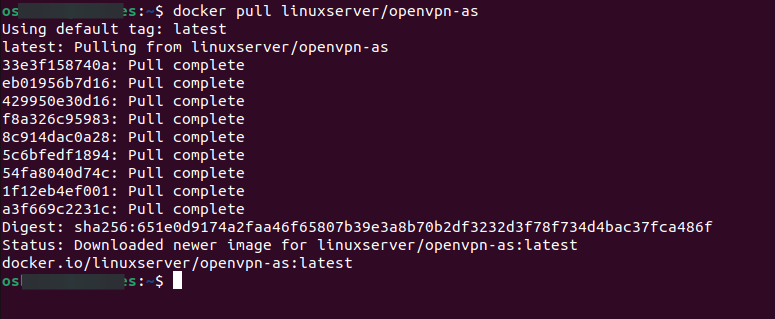
1. Run the following docker pull command to download and install the latest OpenVPN Docker container (openvpn-as) from the Linux Server Docker Hub (linuxserver).
docker pull linuxserver/openvpn-as
AD
Downloading OpenVPN Access Server Docker container
2. Once downloaded, run the docker create command below to create a new Docker container named openvpn-as with the following:
-v /home/docker/openvpn-as/config: /config – Sets the directory to store the config files.
--restart=always – Ensures the container always starts on system boot. You can opt not to add this argument if you don’t want the container to restart.
-e PGID=1001 -e PUID=1001 – Sets the user ID to eliminate permission issues between the host server and the container.
3. Next, run the below docker start command to access the OpenVPN web UI via the OpenVPN Access Server Docker container you created in step two.
docker start openvpn-as
Starting the OpenVPN access server Docker container
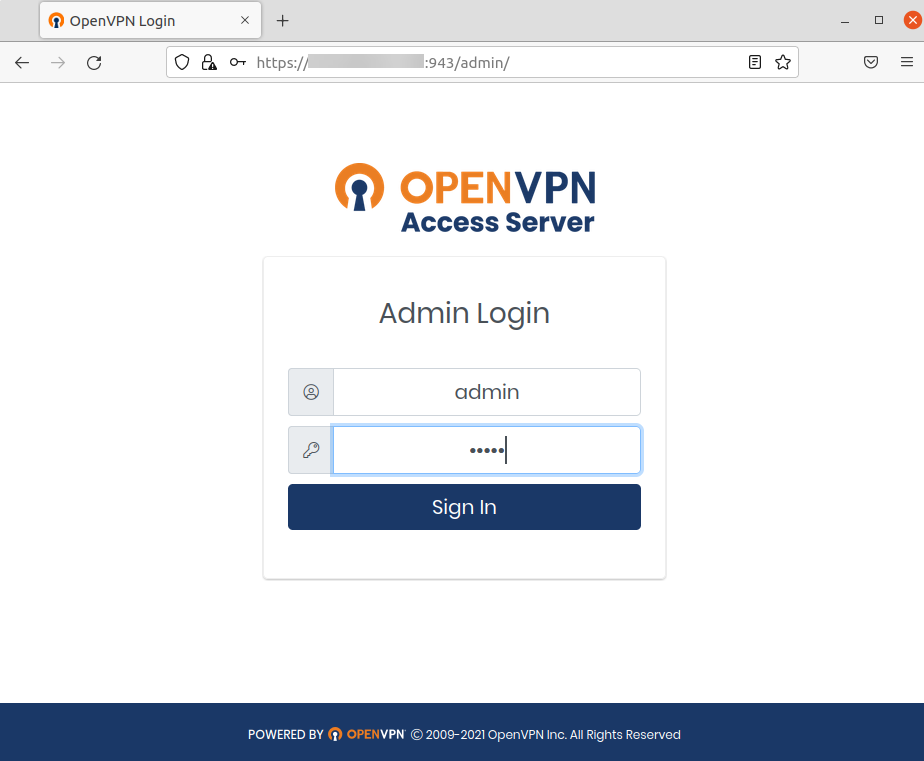
4. Lastly, open your favorite web browser and navigate to the OpenVPN web UI with your local IP address (e.g., https://YourIP:943/admin). Replace YourIP with your actual server’s IP address.
You’ll be greeted with OpenVPN Access Server’s login page if all goes well, as shown below.
AD
Input admin and password for the Username and Password, and click Sign in to access the OpenVPN Access Server dashboard.
Note that the default username and password are admin and password, respectively. You can change the credentials as per your preferences.